
This site is made to be viewed on a desktop PC. Using a phone may result in less than prime viewing conditions.
Everything you need to download, stream, or mount the collection


Streaming supported Best for downloading Plays ISO files
You have a buffet of choices to download, stream, or mount the collection. As a subscriber, you get the whole menu. Dig in and choose your favorite flavor of connectivity!
Everything runs on FTP (yes, we're keeping it retro). Every method mentioned uses FTP, so you're not limited to our suggestions. If your app supports FTP, it'll work. Below are just some curated ideas and tutorials to get you started.
Advanced users can connect instantly using a single URL format:
ftp://USERNAME:PASSWORD@SERVER.whatbox.ca:13017
Example:
ftp://yourusername:yourpassword@columbia.whatbox.ca:13017
You can paste this directly into:
Replace USERNAME, PASSWORD, and SERVER with your login information.
We currently host six servers, each with space for 21.7TB of delightful content:
Can't connect? Check the live server status page first to see if a server is down.
This is an FTP IP, NOT a website!
This is an FTP IP, NOT a website!
This is an FTP IP, NOT a website!
This is an FTP IP, NOT a website!
This is an FTP IP, NOT a website!
This is an FTP IP, NOT a website!
This method is your last resort, but it's handy if your internet connection is slower than a snail in quicksand or non-existent. Download files to your PC (using FileZilla or similar) and transfer them to your headset. Or, if you're a rebel, install an FTP client directly on your headset. Just remember that headset storage is limited, so don't go overboard.
VR headsets are the best way to experience 3D movies. Dual-eye rendering beats theaters, projectors, and 3D TVs. Below are the supported streaming methods.
The most popular option. Why? Because no one wants to clutter up their headset with giant files. All methods below connect directly to FTP. Streaming methods include:
4XVR is currently the best option for streaming directly from FTP while retaining ISO playback. Available for Quest, Pico, and Apple Vision Pro.
📥 4XVR VR Video Player (Pro + Trial Bypass) v20022+2.0.22 -JFDo NOT download the free store version. It is a 5 minute timed trial and is unusable because of this. Either purchase the app (approximately $30) or use the pirated version linked above. Buying the app does NOT guarantee it will work with your network. If it doesnt work when pirated, it wont work when purchased either
13017. Any other port will fail.⚠️ PORT REQUIREMENT: 13017 ONLY
Any port other than 13017 will fail or make it look like your login information is wrong. This is non-negotiable.
If you are using port 13017 and 4XVR does not prompt for a username and password and appears to do nothing, this indicates a router, network, or ISP setting that 4XVR does not handle correctly.
If 4XVR does prompt for your username and password but still fails to connect, you are almost certainly not using port 13017.
This is a known issue affecting many users. We contacted 4XVR about it and they chose not to address it, instead blaming our servers. This is not possible. CX File Explorer works reliably for everyone, and many users only encounter this issue after changing routers or ISPs. At this time, there is no confirmed universal fix.
The only known workaround is logging in through CX File Explorer and then using 4XVR or another media player to play the files. If you do this, ISO streaming will not work.
If you want to help identify a real fix, we are offering a lifetime account for a reproducible solution that works for the majority of affected users. Testing requires changing one router or ISP setting at a time, testing 4XVR, and repeating until results change.
Do NOT message us about 4XVR login or streaming failures. Everything currently known about this issue is documented above. Messages that say any version of "4XVR will not stream", "it does not prompt for login", or "I enter my credentials and nothing happens" will be redirected back to this guide and the CX File Explorer workaround.
There is no hidden fix, no withheld information, and no additional solution we are choosing not to share. If you are not comfortable experimenting with router or ISP settings on your own, use CX File Explorer and move on. Contacting us about this issue will not change the outcome.
If 4XVR connects and streams for you, stop here. You are fully set up and do not need any other workaround.
If you have issues with 4XVR or want an alternative app to stream, CX File Explorer logs into FTP reliably on all networks. Use another media player to play files (4XVR can be used to stream the MKV files).
📥 CX File Explorer v2.6.1 BetaCX File Explorer is an Android app. You can sideload it to your Android device in order to stream the collection. You will have to use another media player like 4XVR, Skybox, DeoVR, etc. to play the movies.
Download it on the device's store if you are using a smart 3D TV, 3D Projector that's Android based, an Android phone, or a Google device. If the device has no store or it's not available you can get the APK at APKMIRROR. This site is well known and safe.
SERVERNAME.whatbox.ca (Servername can be Sputnik, Tamarind, Fenrir, Challenger, Columbia, or Genesis. Add one location per server.)13017If you used symbols in your username or password they were removed! FTP logins aren't symbol friendly. Double check your welcome page linked in the welcome email if you have issues.
Many apps support DLNA servers (like Plex or Windows Media Player). Rclone can also turn your collection into a DLNA server. This method is user-friendly and works on most devices with minimal setup usually.
Password: 3dff
Password: 3dff
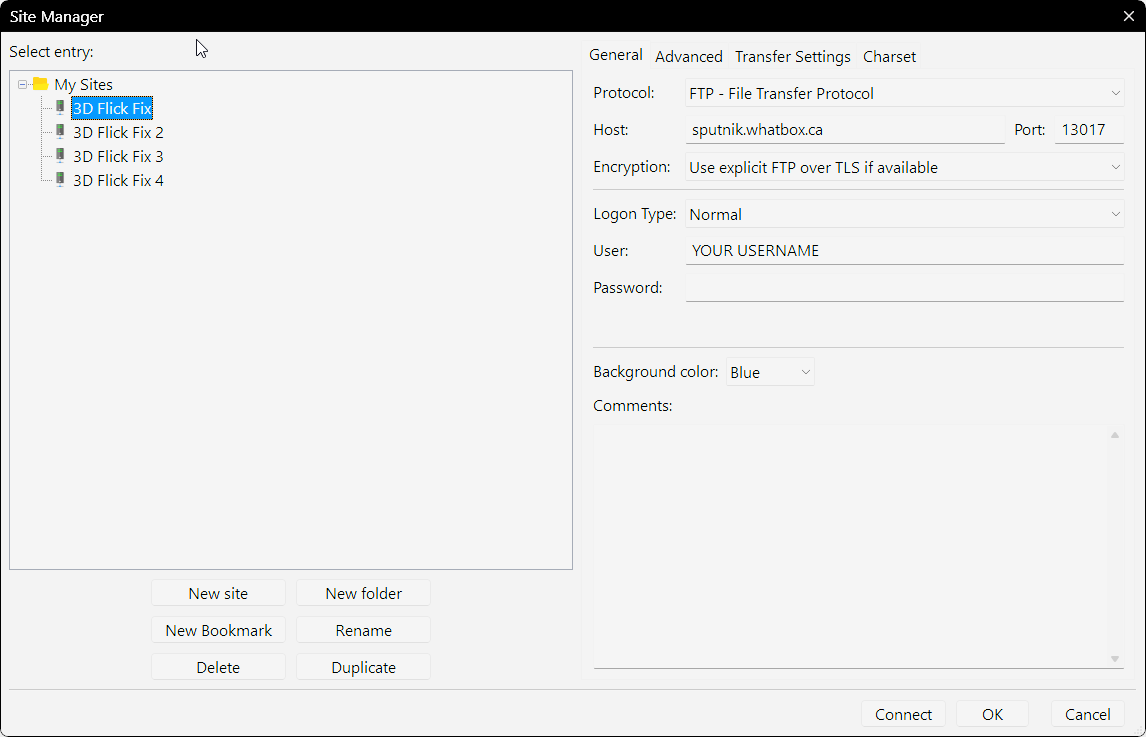
Site Manager for JFC Conversions
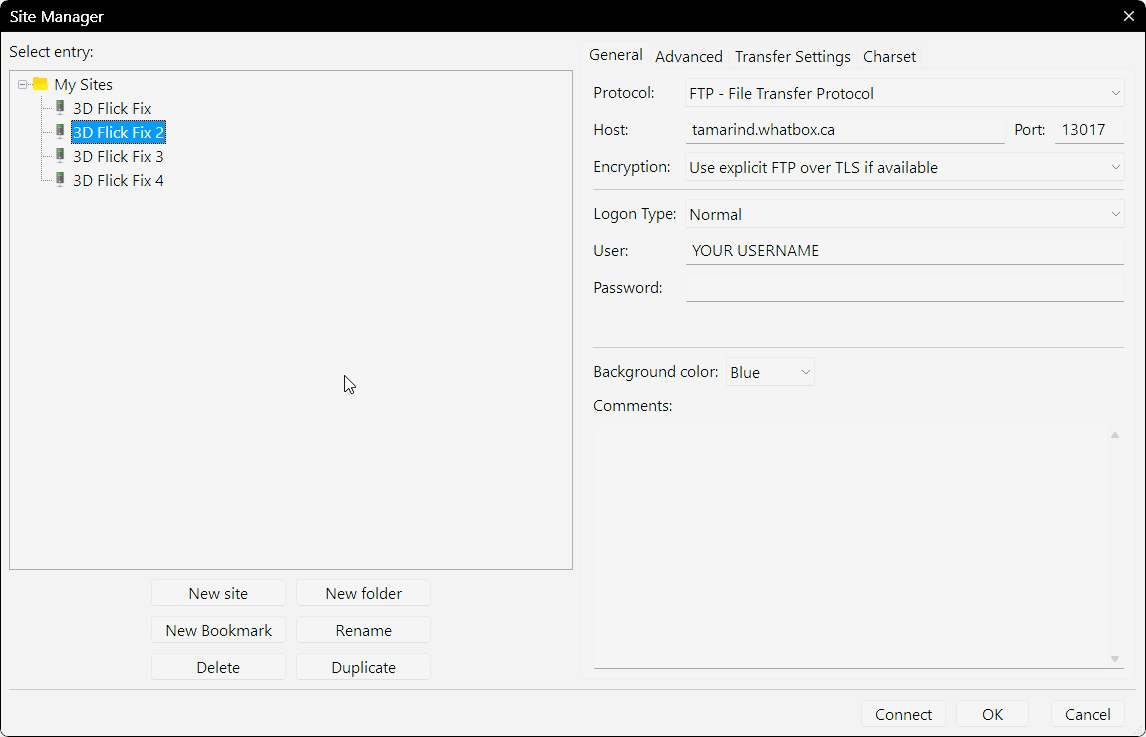
Site Manager for Blockbuster Movies #-E, Anime Shows
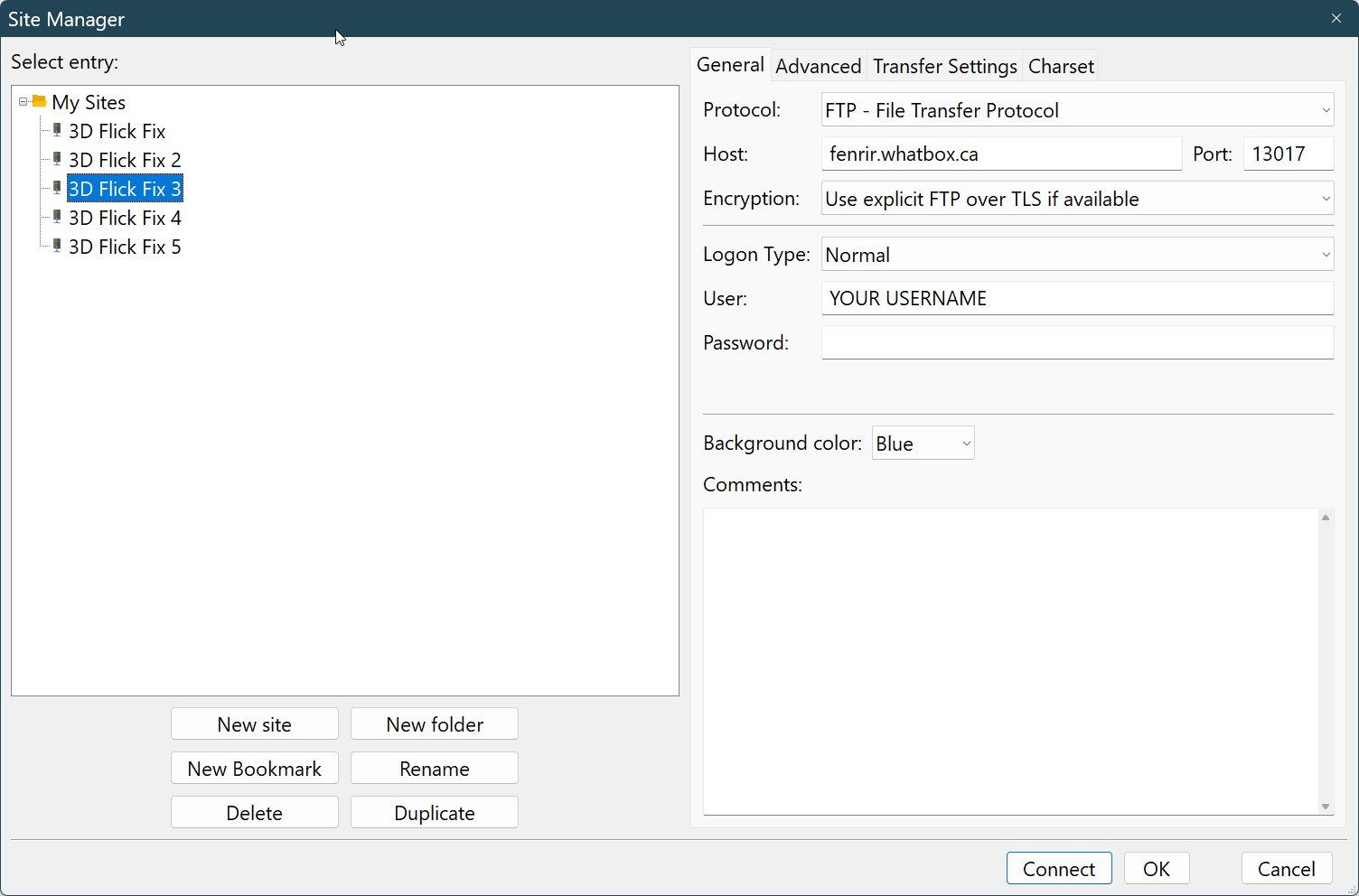
Site Manager for Blockbuster Movies F-L, Superhero Movies
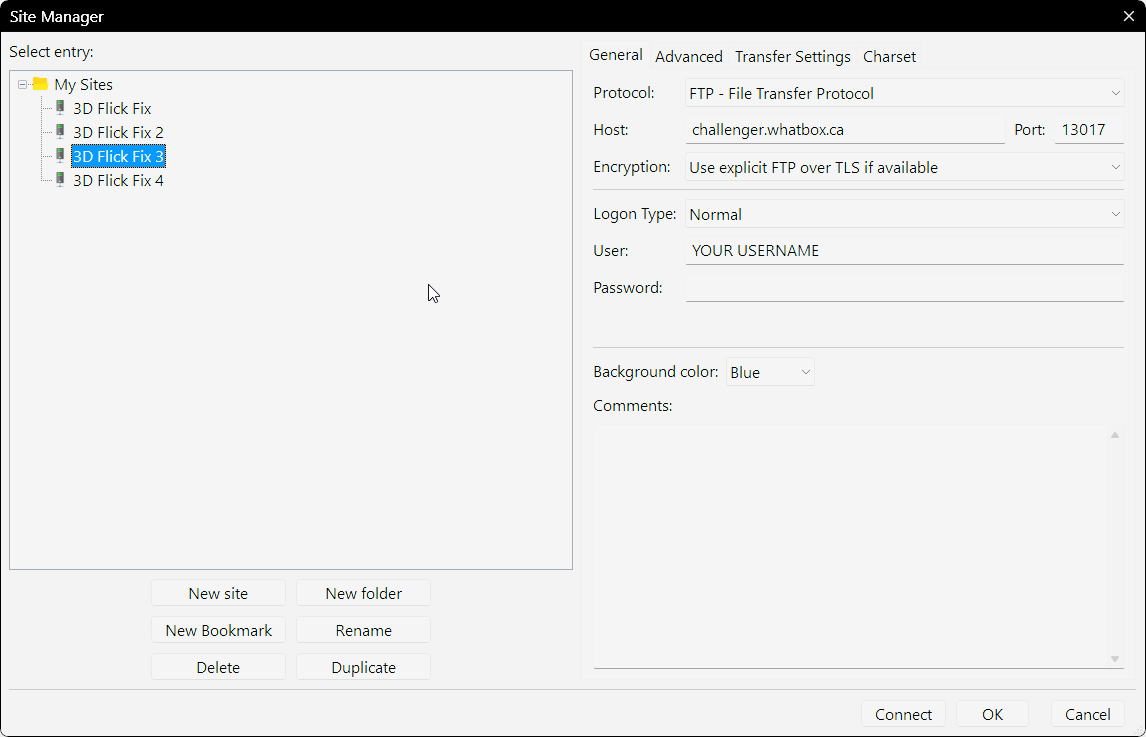
Site Manager for Blockbuster Movies M-S, Anime Movies, Documentaries, and VR Videos
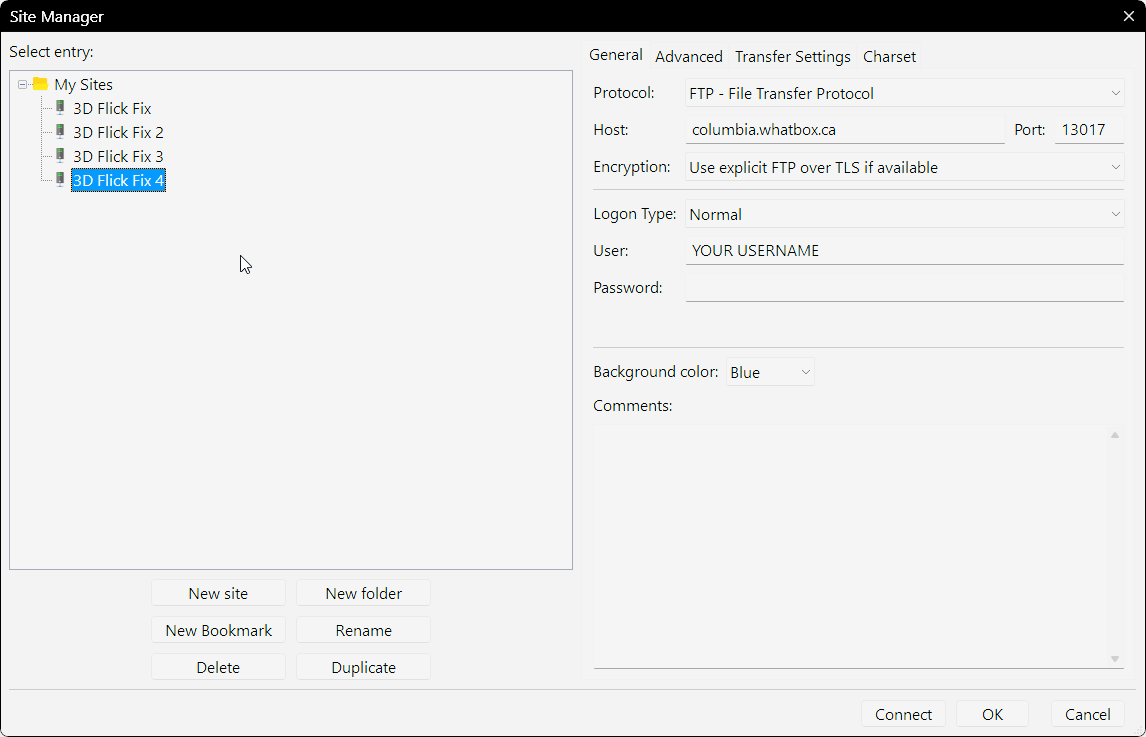
Site Manager for Blockbuster Movies T-Z
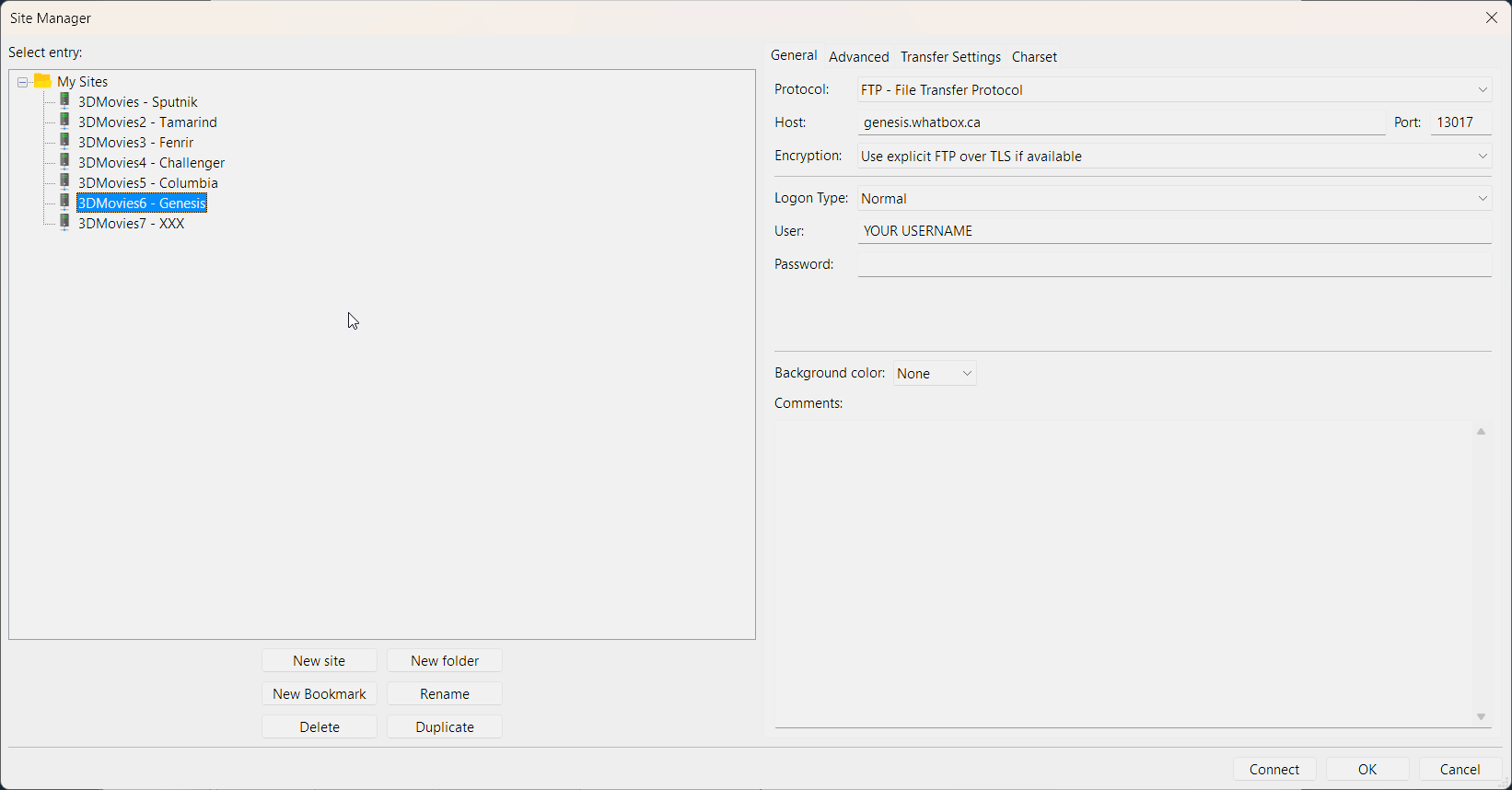
Site Manager for TV Shows
Fingerprint (SHA-256): df:07:f8:aa:6b:43:45:9b:c9:8c:a9:20:ff:01:0f:6c:55:f7:ad:6d:f5:22:19:f9:45:ce:b6:1a:4a:00:d6:17
Fingerprint (SHA-1): 7e:01:81:b7:ec:48:95:88:59:4f:83:58:27:79:9d:60:4f:f9:b4:a3
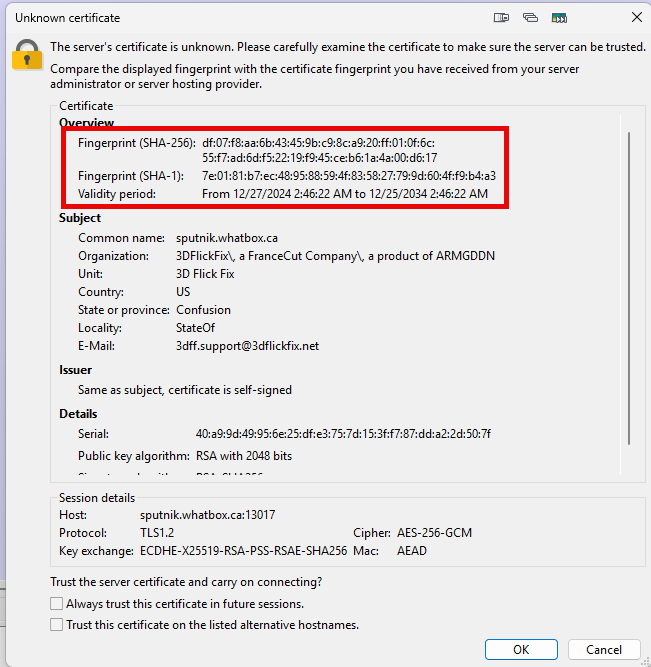
Unknown Certificate for Sputnik
Fingerprint (SHA-256): 09:95:4e:f3:28:68:eb:f6:81:84:21:08:d0:36:9e:e6:81:8a:ee:21:d8:78:82:01:eb:69:c2:53:6d:35:c0:66
Fingerprint (SHA-1): b5:b8:62:ce:06:b7:e9:2d:f0:57:4b:b3:c3:31:0d:8a:88:ad:bf:65
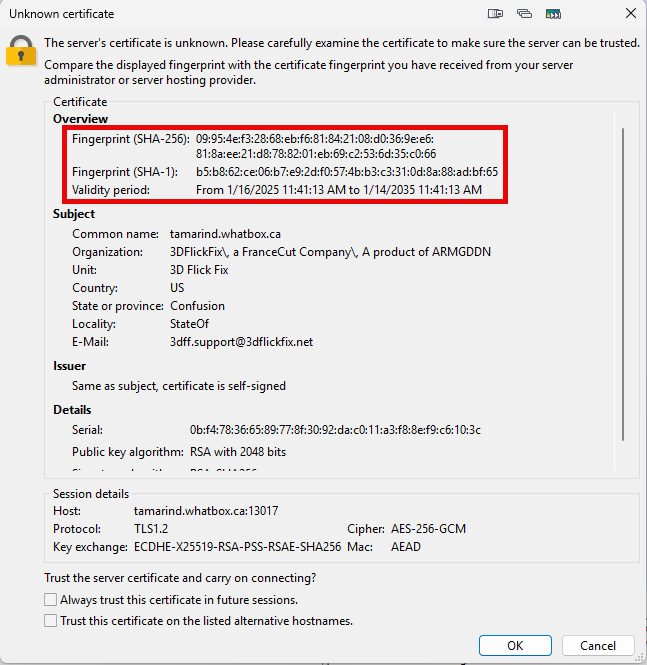
Unknown Certificate for Tamarind
Fingerprint (SHA-256): 1b:c5:1c:c8:b9:d0:08:3b:df:a7:cf:e0:3b:59:43:6b:2d:ec:96:fb:ed:3b:b1:82:b3:09:c0:a3:90:b7:83:eb
Fingerprint (SHA-1): ab:4f:3d:72:e1:65:0d:ef:b6:14:a6:0c:05:20:45:7c:56:c3:41:d5
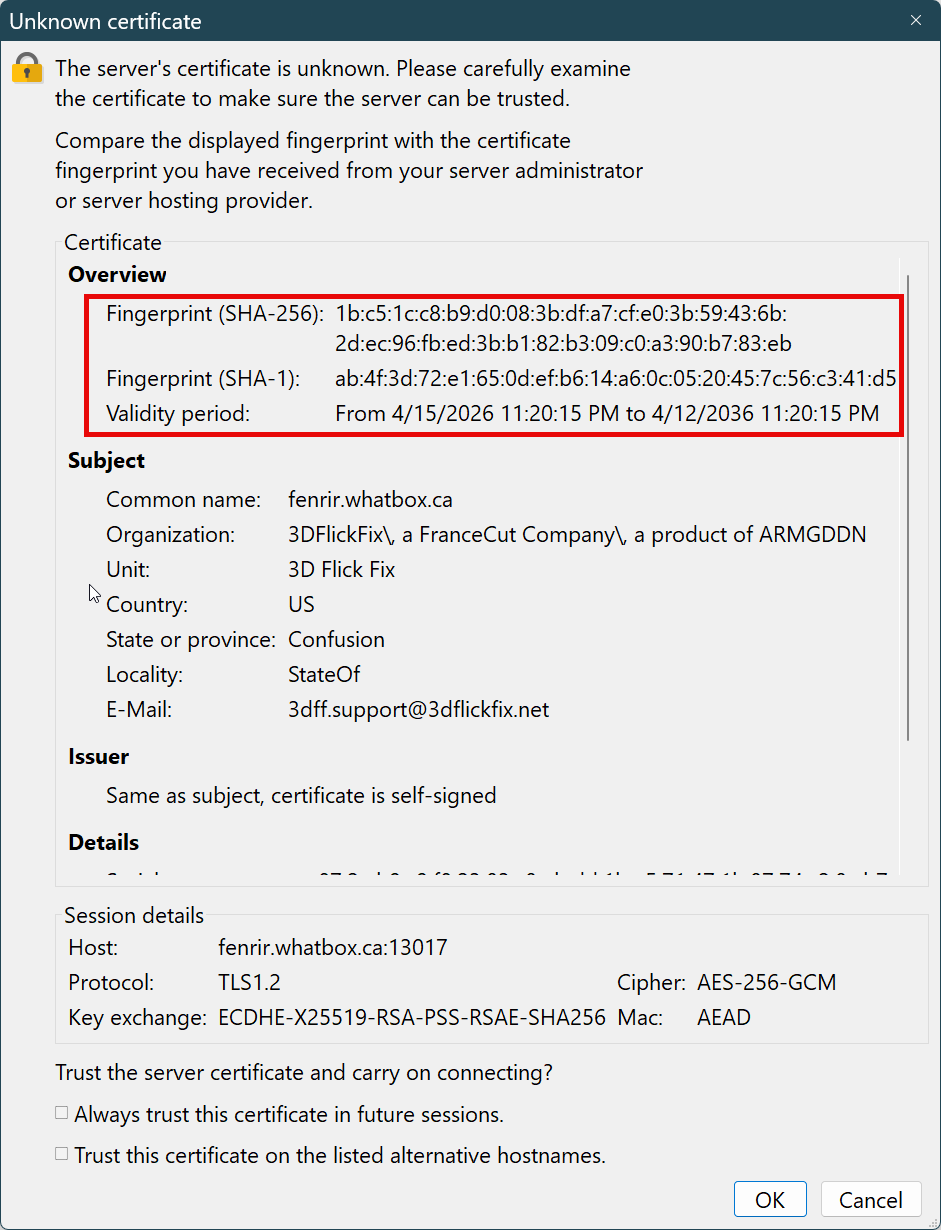
Unknown Certificate for Fenrir
Fingerprint (SHA-256): eb:79:f9:48:81:d3:3b:38:4e:c1:46:8a:45:22:df:8d:a1:f3:b8:3c:27:96:f4:66:a8:d1:82:26:c3:85:2a:ad
Fingerprint (SHA-1): 08:0f:0a:bd:5c:88:ac:63:bc:42:9f:24:31:e7:a6:85:d6:c2:46:b7
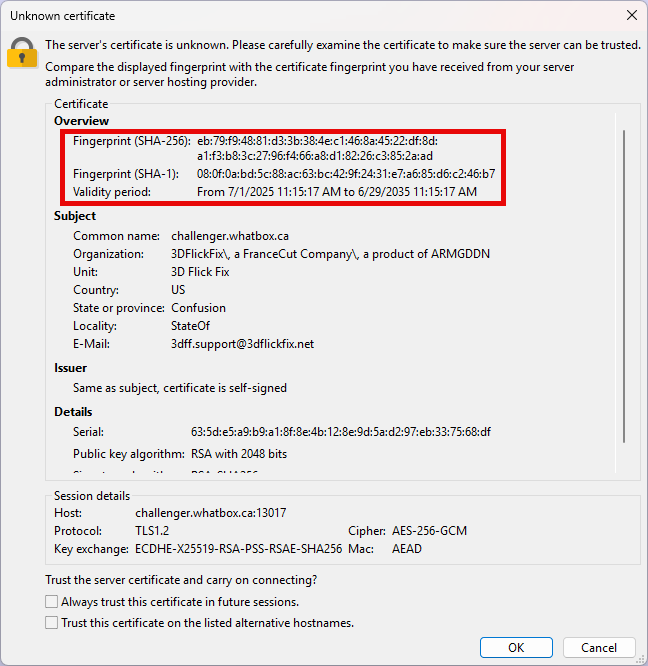
Unknown Certificate for Challenger
Fingerprint (SHA-256): 9b:74:24:c8:95:0b:c6:0b:76:7c:92:62:51:5d:a7:c8:e9:a3:6b:0f:79:79:65:17:b2:b5:fd:41:76:a3:a8:09
Fingerprint (SHA-1): c9:bf:77:9d:b8:50:4b:9f:0d:3b:22:2c:cc:c5:86:49:8e:5e:0d:e0
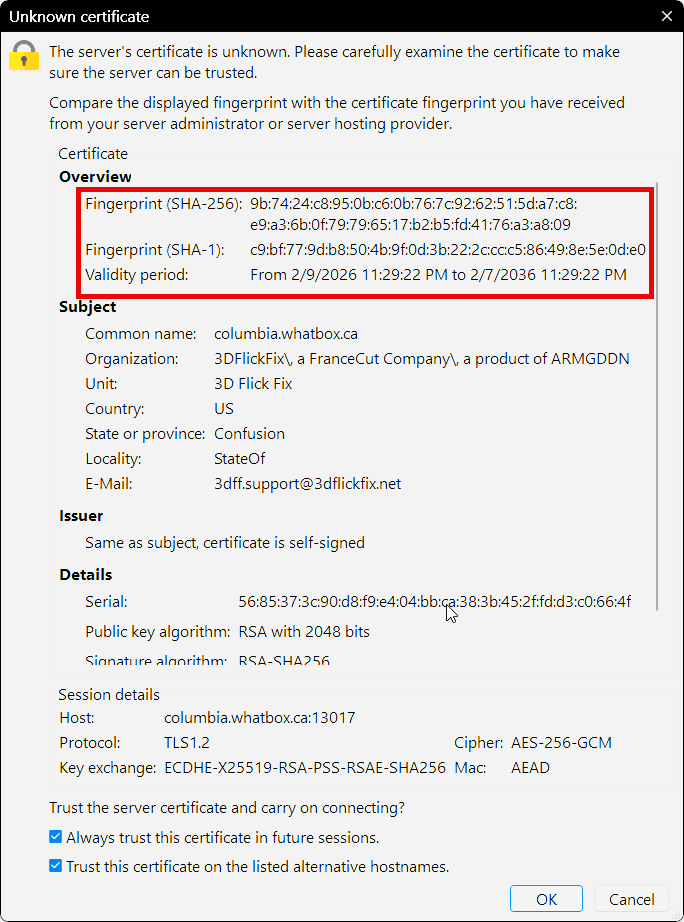
Unknown Certificate for Columbia
Fingerprint (SHA-256): ): b5:06:fc:ac:59:0a:ae:b3:fb:83:da:5d:1 c:37:40:38: ab:49:2b:7c:5e:32:14:67:e8:1a:50:ac:4f:cb:d2:b7
Fingerprint (SHA-1): c9:bf:77:9d:b8:50:4b:9f:0d:3b:22:2c:cc:c5:86:49:8e:5e:0d:e0
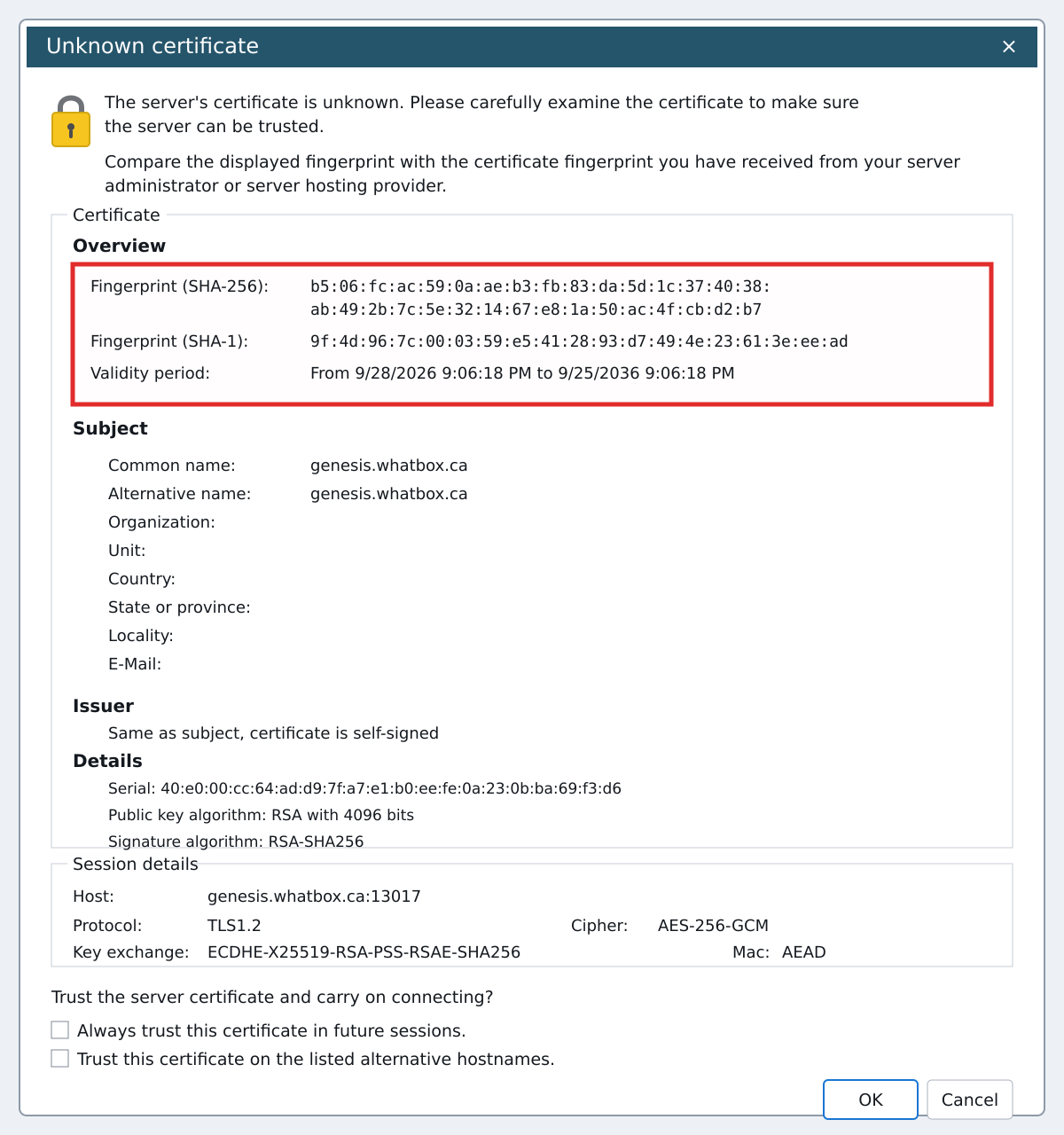
Unknown Certificate for Genesis
If FileZilla hangs or fails to connect and looks like the screenshot below, it may be attempting to connect using IPv6 only and not falling back to IPv4.
Our servers require IPv4. When this happens, FileZilla will never connect.
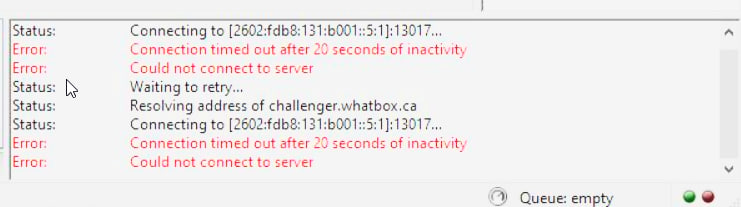
Example of FileZilla attempting IPv6-only connections and never falling back to IPv4
I created a batch file that fixes this by blocking IPv6 for FileZilla using Windows Firewall.
📥 Download IPv6 Fix (BlockIPV6.bat)Instructions:
filezillaportable.exeIf everything worked, FileZilla should connect immediately.
This batch file creates Windows Firewall rules that block IPv6 for FileZilla executables.
This fix only applies if:
It will not affect other applications or your system networking.
If you do not feel comfortable running a batch file, you can do this manually. Keep it simple.
If this sounds confusing, stop here and just run the batch file.
All mounting methods on Windows require WinFSP. Download it here or grab it from the 3DFF DLNA + Mount Kit
Password: 3dff
Password: 3dff

Replace the config file
Instead of mounting drives with rclone, you can now stream your 3D Flick Fix library directly through Stremio using our custom addon.
An alternative to mounting our FTP with rclone. Instead, install our Stremio addon, point it at your account, and stream your library from any Stremio client.
There are two paths below. Part 1 is the quick setup you'll use 99% of the time. Part 2 is the advanced option for power users.
You don't need to fill anything in by hand. We hand you a pre-filled settings file with your account and the 3D Flick Fix servers already configured.
Sign in to 3DFlickFix.net and download your stremio-ftp-settings.json from the account page.
https://ftpstrem.skynetsource.com/configure
The setup token is integrated into the link in your account info area. See the screenshot.
Otherwise you can copy the setup token from this link, but it makes more sense just to use it instead
While you are in your 3DFF account link page downloading the .json, just click the one-shot configure link from there. The token is stripped from the URL automatically so you dont have to copy and paste anything.
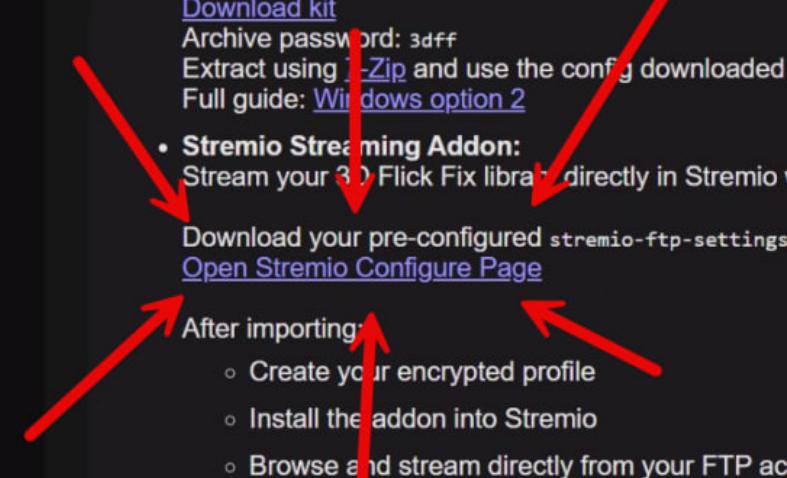
Use the one-shot configure link or copy your setup token
On the unlock screen, click
Import settings
(left of the Create profile button)
and select your downloaded
stremio-ftp-settings.json file.
Once imported, your 3D Flick Fix servers and credentials will be filled in automatically. No manual server setup is required.
Create a passphrase with at least 8 characters. This encrypts your saved FTP credentials locally in your browser. There is no password recovery, so do not forget it.
After setup finishes, scroll to the bottom of the page. You will see:
That's it. The 3D Flick Fix catalog shows up in Stremio's Discover; individual titles play directly from FTP.
Official Stremio clients only. The public instance hands out raw ftp:// stream URLs and the official Stremio apps are the only clients we've confirmed will open them. Third-party Stremio forks may or may not work; if you need broader client compatibility, see Part 2.
| Platform | Stremio client | Player |
|---|---|---|
| Windows / macOS / Linux | Stremio Desktop | Built-in — no extra setup, plays FTP natively. |
| Web (any OS) | Stremio Web | Built-in browser player; falls back to your OS's external player for FTP. |
| Android (phone / tablet) | Stremio for Android | Built-in. For 3D, set Settings → Player → Always start in external player and pair with a 3D-capable Android player. |
| Meta Quest 3 / 2 / Pro | Stremio VR (Horizon Store) or Stremio Web in the Quest browser | For 3D, enable Stremio's external-player handoff and use 4XVR or Skybox. |
| Apple Vision Pro | Stremio Web in Safari (no native Stremio app yet) | Hand off to Moon Player or CineUltra for real 3D / spatial playback. Walkthrough: Stremio on Vision Pro via Moon. |
| iPhone / iPad | Stremio Lite or Stremio Web in Safari | Falls back to the system external player. |
| Apple TV | Stremio Lite for tvOS | Built-in. |
If 3D playback isn't picking up automatically in your external player, set the stereo mode manually (Half SBS for most 1080p rips, Full SBS for 4K).
Self-hosting the addon unlocks features the public instance can't offer:
https:// URL from your instance instead of ftp://, so any Stremio-compatible client works (not just the official ones). Useful for the iOS Stremio Lite, third-party clients, and clients with picky URL handling.Run it yourself in Docker. Full setup, environment variables, and a sample Compose file are in the README:
Repo: https://github.com/skynet01/stremio-ftp
The settings JSON you exported on the public instance imports cleanly into a self-hosted instance, so you don't need to redo anything.
Once you're running proxy mode, you have a much bigger client pool. A few worth knowing about:
ftp://. Switch to Stremio Desktop, or set up an external player (see the per-platform table).Use only with media you own or are licensed to access.
If you can dream it, you can stream it. Any FTP-compatible method will work. If you're stuck, don't hesitate to reach out—we've got your back.
